


Spending hours in front of a screen can take a toll on your eyes, especially when glare is involved. The persistent reflection and bright light can lead to eye strain, headaches, and decreased productivity.
Fortunately, there are several strategies you can implement to minimize glare and create a more comfortable and efficient workspace. Addressing this issue is essential for maintaining your well-being and optimizing your work environment.
This guide will walk you through the best practices for reducing screen reflection, from adjusting your monitor’s position to using anti-glare filters. By following these tips, you’ll be well on your way to a more enjoyable and productive work experience, free from the discomfort of eye strain.
Understanding the Causes of Glare on Screens
Glare on screens is primarily caused by light reflecting off the surface of the display. This reflection can originate from various sources, both natural and artificial.
Sunlight streaming through windows is a common culprit, as it is often the most intense source of light. Overhead lights, desk lamps, and even reflections from glossy surfaces can also contribute to the problem.
The angle at which light strikes the screen plays a significant role in the severity of the glare. Direct light sources create the most noticeable and distracting reflections, making it difficult to view the screen clearly.
Understanding these sources and how they interact with your screen is the first step in effectively minimizing glare. By identifying the primary causes, you can implement targeted solutions to address the issue.
Beyond direct sunlight and artificial lights, reflected light from walls or other objects can also contribute to screen glare. Light bounces off these surfaces and then onto your screen, creating a distracting haze.
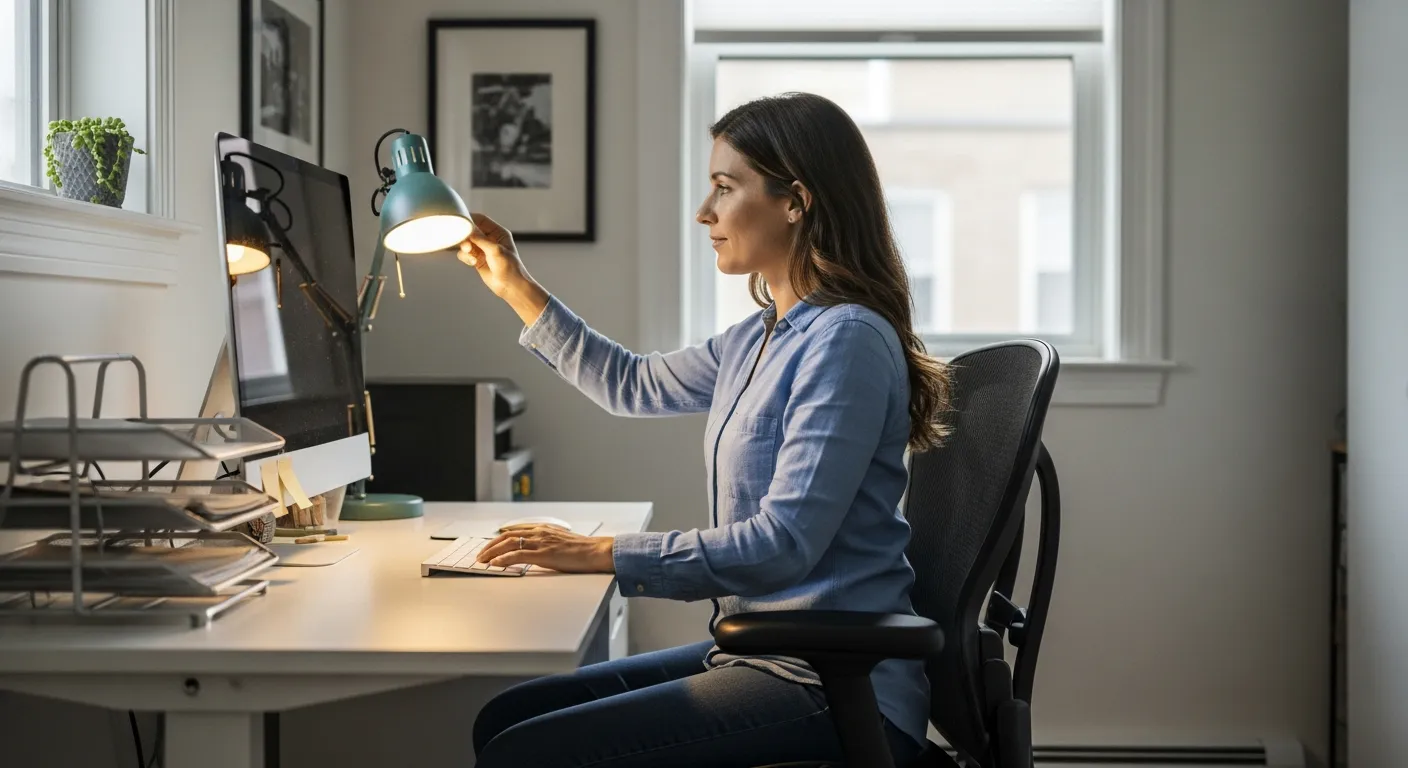
The type of screen you have also influences how much glare you experience. Glossy screens, while offering vibrant colors, tend to reflect more light than matte screens, making them more susceptible to glare.
Consider the color of your walls and furniture as well. Light-colored surfaces reflect more light than dark-colored surfaces, potentially increasing the amount of glare in your workspace.
Even the clothes you wear can contribute to glare. Brightly colored or reflective clothing can bounce light onto the screen, creating a distracting reflection.
Positioning Your Monitor to Reduce Glare
One of the simplest yet most effective ways to reduce glare is to strategically position your monitor. The goal is to minimize the amount of direct light hitting the screen.
Avoid placing your monitor directly in front of a window, as this will almost certainly result in significant glare. Instead, position your monitor perpendicular to windows, so that the light source is to the side rather than directly behind or in front of you.
Experiment with different angles and distances to find the optimal position. A slight tilt of the monitor can also help redirect reflections away from your eyes, making the screen more comfortable to view.
If possible, try to position your desk so that your monitor is facing a wall, which can help reduce reflections from other light sources in the room. This setup can create a more controlled lighting environment, minimizing distractions and eye strain.
Consider the height of your monitor as well. The top of the screen should be at or slightly below eye level to prevent you from tilting your head up, which can cause neck strain and exacerbate eye fatigue.
Adjusting the distance between you and your monitor is also important. A general rule of thumb is to sit an arm’s length away from the screen.
Think about the placement of other light sources in your room when positioning your monitor. Avoid placing lamps or other light fixtures directly behind you, as this can create reflections on the screen.
Don’t be afraid to experiment with different desk arrangements to find the optimal monitor position. Even a small adjustment can make a significant difference in reducing glare and improving your viewing experience.
Adjusting Ambient Lighting to Minimize Reflections
Ambient lighting refers to the general illumination in your workspace. Adjusting this lighting can significantly impact the amount of glare on your screen.
Start by reducing the overall brightness of the room, especially if you’re working in a small space. Dimming overhead lights or using lamps with lower wattage bulbs can make a big difference.
| Lighting Type | Pros | Cons |
|---|---|---|
| Overhead Lights | Provide general illumination | Can cause glare if too bright |
| Desk Lamps | Offer focused light | May create reflections if not positioned correctly |
| Natural Light | Reduces eye strain | Can be inconsistent and cause glare |
| Smart Bulbs | Adjustable brightness and color | More expensive than traditional bulbs |
Consider using window coverings such as blinds or curtains to control the amount of natural light entering the room. These coverings allow you to adjust the light levels throughout the day, minimizing glare during peak sunlight hours.
Balancing the ambient light with the brightness of your screen is key to reducing eye strain. The goal is to create a comfortable contrast that allows you to view the screen without squinting or straining your eyes.
If you have overhead lights, consider using diffusers to soften the light and reduce glare. Diffusers can be attached to the light fixtures to spread the light more evenly throughout the room.
Avoid using glossy paint on your walls, as this can reflect light and increase glare. Matte or eggshell finishes are better choices for reducing reflections.
Think about the color temperature of your light bulbs. Warmer light (around 2700K to 3000K) is generally more comfortable for the eyes than cooler light (around 5000K to 6500K).
Use task lighting to provide focused illumination for specific tasks, such as reading or writing. This can help reduce the need for bright overhead lights, minimizing glare on your screen.
Using Anti-Glare Screen Filters
Anti-glare screen filters are designed to reduce reflections and improve screen visibility. These filters are available for various monitor sizes and can be easily attached to your screen.
They work by diffusing the light that hits the screen, reducing the intensity of reflections. Anti-glare filters can significantly improve your viewing experience, especially in brightly lit environments.
There are different types of anti-glare filters available, including matte and glossy options. Matte filters are generally more effective at reducing glare, while glossy filters may offer better image clarity.
Consider the specific lighting conditions in your workspace when choosing an anti-glare filter. If you’re dealing with significant glare from multiple sources, a matte filter may be the best option, but if you need higher clarity, then a glossy filter may be better.
Some anti-glare filters also offer additional benefits, such as privacy protection. These filters limit the viewing angle of your screen, preventing others from seeing your screen from the side.
When installing an anti-glare filter, be sure to follow the manufacturer’s instructions carefully. Proper installation is essential for ensuring optimal performance and preventing damage to your screen.
Clean your anti-glare filter regularly to remove dust and fingerprints. Use a soft, lint-free cloth and a specialized screen cleaning solution to avoid damaging the filter’s surface.
Consider the thickness of the anti-glare filter. Thicker filters may offer better glare reduction but can also slightly reduce image clarity. Choose a filter that balances glare reduction with image quality to meet your specific needs.
Choosing the Right Desk Lamp and Placement
A desk lamp can be a valuable addition to your home office setup, providing focused light for tasks. However, an improperly placed or overly bright desk lamp can also contribute to glare.
When choosing a desk lamp, opt for one with an adjustable arm and dimmer switch. This allows you to control the direction and intensity of the light, minimizing reflections on your screen.
- Position the lamp to the side of your monitor
- Angle the light away from your eyes
- Use a lamp with a shade to diffuse the light
- Choose a bulb with a warm color temperature
- Adjust the dimmer switch to a comfortable level
Experiment with different placements to find the optimal position for your desk lamp. The goal is to provide adequate illumination without creating glare or reflections on your screen.
Consider the type of bulb you use in your desk lamp. LED bulbs are a good choice because they are energy-efficient and produce less heat than traditional incandescent bulbs.
Avoid using desk lamps with exposed bulbs, as these can create harsh glare. Choose a lamp with a shade that directs the light downwards and diffuses it evenly.
If you have multiple monitors, consider using two desk lamps, one for each monitor. This can help provide more balanced lighting and reduce eye strain.
Think about the color of your desk lamp. Dark-colored lamps can absorb light and reduce reflections, while light-colored lamps can reflect light and potentially increase glare.
The Importance of Regular Breaks
Even with the best lighting and screen setup, prolonged screen time can still lead to eye strain. Taking regular breaks is essential for maintaining eye health and preventing discomfort.
Follow the 20-20-20 rule: every 20 minutes, look at something 20 feet away for 20 seconds. This simple exercise helps to relax your eye muscles and reduce strain.
In addition to the 20-20-20 rule, take longer breaks throughout the day to step away from your computer entirely. Use this time to stretch, walk around, or engage in activities that don’t involve screens.
These breaks not only benefit your eyes but also improve your overall well-being and productivity. Regular breaks can help you stay focused and energized throughout the workday.
Set reminders on your computer or phone to prompt you to take breaks. There are also apps available that can help you track your screen time and schedule breaks.
During your breaks, try to focus on activities that are visually relaxing, such as looking at nature or doing some light stretching.
Avoid using your phone or other screens during your breaks, as this can defeat the purpose of taking a break from screen time.
Make sure to blink frequently while working on your computer. Blinking helps to keep your eyes lubricated and prevent dryness.
Adjusting Screen Brightness and Contrast
Optimizing your monitor’s brightness and contrast settings is crucial for reducing eye strain and minimizing glare. The goal is to find a balance that allows you to view the screen comfortably in your specific lighting conditions.
Start by adjusting the brightness to match the ambient light in your workspace. If the screen is too bright compared to the surrounding environment, it can cause eye fatigue and discomfort.
Similarly, if the screen is too dim, you may find yourself squinting to see the content clearly. Adjust the contrast to ensure that text and images are sharp and well-defined, without being overly harsh.
Most operating systems offer built-in tools for calibrating your display settings. Experiment with these tools to find the optimal brightness and contrast levels for your eyes.
Consider using a monitor calibration tool to fine-tune your display settings. These tools can help you achieve more accurate colors and brightness levels.
Adjust your screen brightness and contrast throughout the day as the ambient light changes. What works well in the morning may not be ideal in the afternoon.
Pay attention to the color temperature of your screen. Warmer colors (more yellow) are generally more comfortable for the eyes than cooler colors (more blue).
Use a dark theme or dark mode on your computer and apps. Dark themes can reduce eye strain, especially in low-light environments.
Choosing the Right Monitor Type
The type of monitor you use can also affect the amount of glare you experience. Different display technologies have varying levels of reflectivity and light diffusion.
Matte displays are generally better at reducing glare than glossy displays. Matte screens have a non-reflective surface that diffuses light, minimizing reflections and making the screen easier to view in bright environments.
Glossy displays, on the other hand, have a smooth, reflective surface that can produce significant glare. While glossy screens may offer better color vibrancy and image clarity, they can be more challenging to use in brightly lit spaces.
Consider your specific needs and working environment when choosing a monitor. If you frequently work in a brightly lit room, a matte display may be the better choice for reducing glare and eye strain.
Look for monitors with features like anti-glare coatings or low blue light emissions. These features can further reduce eye strain and improve your viewing experience.
Consider the size and resolution of your monitor. A larger screen with a higher resolution can make it easier to see text and images, reducing eye strain.
Think about the refresh rate of your monitor. A higher refresh rate can reduce flicker and improve image smoothness, which can be beneficial for eye health.
Research different monitor brands and models to find one that meets your specific needs and budget. Read reviews and compare specifications to make an informed decision.
Utilizing Software and Apps to Reduce Eye Strain
In addition to hardware solutions, there are various software and apps available that can help reduce eye strain. These tools often work by adjusting the color temperature of your screen, reducing blue light emissions, and providing reminders to take breaks.
Blue light is a high-energy visible light that can contribute to eye strain and disrupt sleep patterns. Many software programs offer blue light filters that shift the color temperature of your screen towards warmer tones, reducing the amount of blue light emitted.
Some apps also provide customizable break reminders to help you follow the 20-20-20 rule. These reminders can be set to pop up at regular intervals, prompting you to take a break and look away from the screen.
Explore the available software and apps to find tools that suit your needs and preferences. Experiment with different settings to optimize your screen for comfortable viewing and reduced eye strain.
F.lux is a popular software program that automatically adjusts the color temperature of your screen based on the time of day. It gradually shifts the screen towards warmer tones as the sun sets, reducing blue light emissions and promoting better sleep.
Iris is another software option that offers a wide range of features for reducing eye strain, including blue light filters, brightness adjustments, and break reminders.
Many operating systems now have built-in blue light filters. These filters can be enabled in your display settings.
Consider using a screen dimmer app to further reduce screen brightness. These apps can dim your screen beyond the minimum brightness level offered by your operating system.
Maintaining a Clean Screen
A clean screen is essential for optimal viewing and reduced glare. Dust, fingerprints, and smudges can scatter light and create unwanted reflections, making it harder to see the screen clearly.
Regularly clean your monitor with a soft, lint-free cloth. Avoid using harsh chemicals or abrasive cleaners, as these can damage the screen’s surface.
Dampen the cloth slightly with water or a specialized screen cleaning solution. Gently wipe the screen in a circular motion to remove any dirt or smudges.
A clean screen not only reduces glare but also improves image clarity and overall viewing experience. Make screen cleaning a regular part of your workspace maintenance routine.
Use a microfiber cloth for cleaning your screen. Microfiber cloths are gentle and effective at removing dust and fingerprints.
Avoid spraying cleaning solution directly onto the screen. Instead, spray the solution onto the cloth and then wipe the screen.
Be careful not to apply too much pressure when cleaning your screen. Gentle wiping is all that’s needed.
Clean your screen at least once a week, or more often if needed. A clean screen will help you see better and reduce eye strain.
Conclusion
Minimizing glare on screens is essential for creating a comfortable and productive home office environment. By understanding the causes of glare and implementing the strategies outlined in this guide, you can significantly reduce eye strain and improve your overall well-being.
From positioning your monitor to adjusting ambient lighting and using anti-glare filters, there are numerous steps you can take to optimize your workspace. Remember to take regular breaks and maintain a clean screen for the best results.
By taking proactive steps to reduce glare, you can create a more enjoyable and sustainable work environment. Your eyes will thank you for it!
Remember to experiment with different solutions to find what works best for you. Every workspace is unique, so what works for one person may not work for another.


