

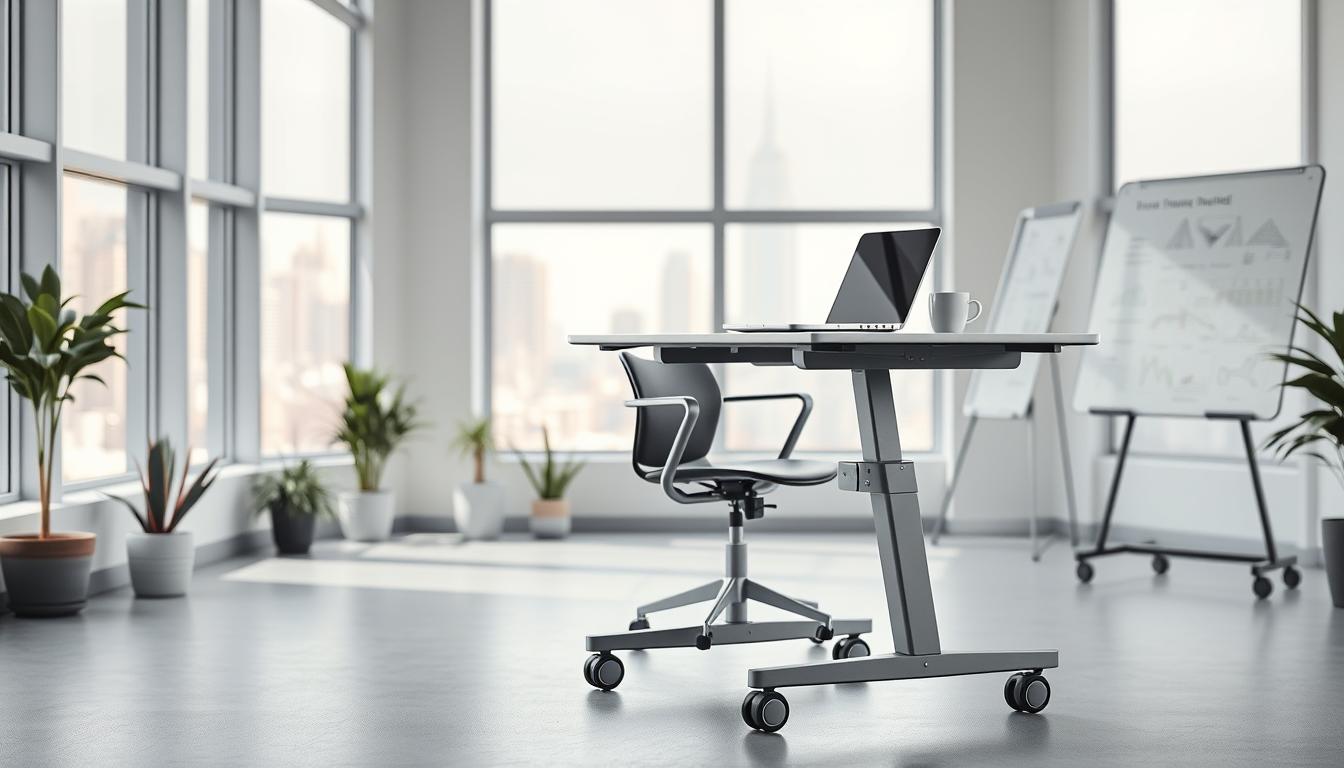
Quick overview: You’ll learn when a movable setup helps your team and when it creates tradeoffs. A portable workstations option lets you roll a cart or a laptop to the point of need. That can cut wait times and speed collaboration.
In this piece you’ll compare high-performance laptop rigs like the Orbital Mobile Workstation CAD laptops — in stock, configurable, and tuned for CAD/CAM/CAE/GIS with up to 5.8 GHz CPUs and RTX 5000 GPUs — against clinical carts from Midmark and broader catalog carts. The goal is to judge productivity gains versus stability, power delivery, and cable clutter.
You’ll see how a mobile cart (a movable desk/cart that carries your computer setup) differs from a mobile workstation laptop. You’ll also get an evaluation framework: ergonomics, height range, performance, connectivity, and logistics such as shipping and stock.
Key takeaways: Choose mobility when it removes workflow bottlenecks. Expect tradeoffs in stability and cable management so you can buy with fewer surprises.
Why Workstations on Wheels Are Trending in the US Right Now
When space is tight and schedules stack up, bringing the workstation to the task often beats sending people back to a fixed desk. You see more carts in clinics, design hubs, and shared departments because hot-desking and multiuse rooms demand flexible setups.

What mobility adds to your workflow
Flexible space: A rolling desk lets you reconfigure rooms without heavy furniture moves.
Faster handoffs: Move a cart to the next station and keep a project flowing instead of waiting for someone to return to a central computer.
Better throughput: You reduce back-and-forth and save minutes across repeated tasks, which adds up over a day.
Where the approach falls short
Stability: A cart can wobble or drift, which matters when you type, draw, or use precision input.
Cable management: Moving a computer and accessories raises snag risk and messy cords that eat time.
Power and performance tradeoffs: Mobile setups often use batteries, compact PSUs, or laptops that prioritize portability. Match your performance needs to avoid slowdowns on heavy apps.
- Shared departments and hot-desking drive adoption.
- Rolling a cart is easier than reconfiguring furniture in tight space.
- Midmark’s models cover a wide height range — roughly 5’0″ seated to 6’4″ standing — which reduces friction for many users.
Next step: In the following section, you’ll get a checklist of what to verify before you buy so you avoid the most common mobility regrets.
Portable workstations: What to Look for Before You Buy
Before you buy, focus on the practical checks that separate a useful rolling setup from one that creates daily friction.
Ergonomics and height range
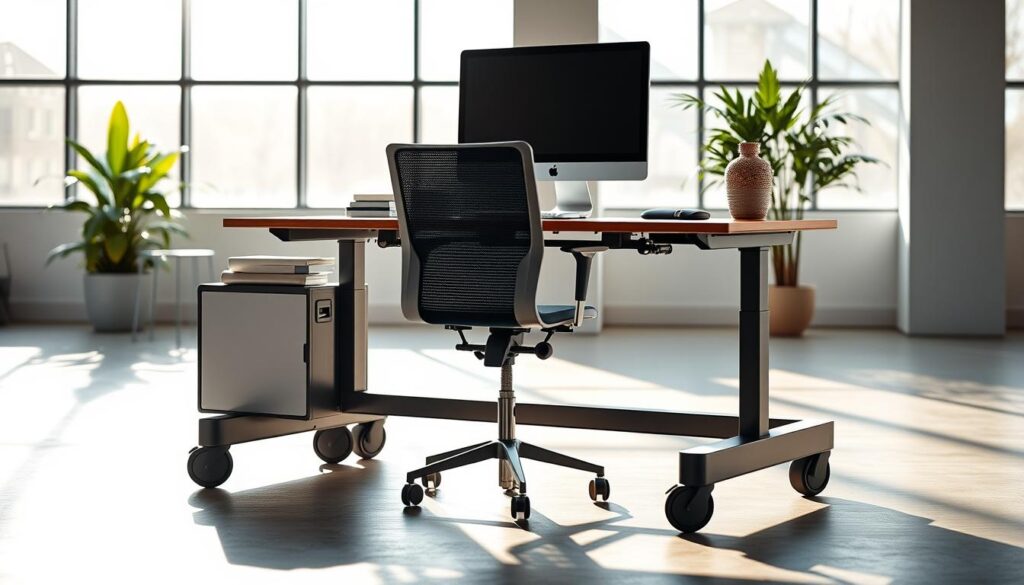
Fit your team: verify the height range covers seated-to-standing movement without tools. Aim for a standing desk-style range that won’t force awkward wrist angles.
Midmark models support users from 5’0″ seated to 6’4″ standing — a helpful baseline when measuring height needs.
Desktop vs laptop setups
Desktops give sustained performance. A laptop simplifies mobility and reduces cable clutter on a cart. Choose a mobile computer workstation when you must move room-to-room with the same monitor, keyboard, and mouse.
Performance, memory, storage, and displays
CPU and GPU: prioritize high CPU frequency and pro-class GPUs with studio drivers for CAD and creative apps. Orbital offers up to 5.8 GHz and RTX 5000 options with up to 24GB VRAM.
RAM and SSD: pick DDR5 capacity for large assemblies and NVMe SSDs for fast load/save; PCIe 5.0 NVMe can exceed 13,000 MB/s for heavy projects.
Display support: ensure multi-monitor support without performance loss — some laptops drive 2x 4K directly from ports, which keeps graphics smooth.
Input, surface, and logistics
Make sure a compact-top cart gives enough desk space for your keyboard, mouse, and mousing area. Plan accessory mounts to make the surface feel like a real desk.
- Confirm in-stock status and shipping windows.
- Check warranty, USA-based support, and build/testing policies.
- Match the system to your apps before you buy.
Product Roundup: Mobile workstation options for different spaces and workloads
This roundup sorts mobile solutions by room type so you can zero in on the best match for your team.
High-performance CAD and engineering
Best fit: laptop-based mobile workstation like Orbital when you need top CPU clocks (up to 5.8 GHz) and RTX-class GPUs. Verify GPU VRAM (up to 24GB), Nvidia Studio drivers, and multi‑monitor support (2×4K via ports).
Clinical and exam-room carts
Best fit: carts designed for wide height ranges and fast repositioning. Midmark models support users from 5’0″ seated to 6’4″ standing and include new compact-top options for tighter exam rooms.
Workshop, industrial, and shared departments
Best fit: catalog mobile computer workstation pages (39 items shown) for standardized buys across sites. Choose rugged carts and check in-stock counts for fast shipping.
- Compare total cost: base cart, monitor mounts, power management, and keyboard trays.
- Price range on the category page runs roughly $41.81–$1,443.25; accessories change final cost.
- Tip: prioritize stock and shipping speed when outfitting teams on deadline; use ready-to-ship items as benchmarks.
Conclusion
Wrap up your buying decision by weighing how much mobility will speed tasks against the work needed to keep systems steady and powered.
Core tradeoff: mobile setups remove bottlenecks and free space, but you must plan for stability, cable routing, and power/performance needs.
Buying method: start with your workflow and space limits. Match cart ergonomics to computer performance instead of choosing by price alone.
Key specs to check: CPU frequency, GPU class and VRAM, pro drivers, plus sufficient RAM and NVMe SSD capacity for CAD or heavy apps.
Team adoption: wide height adjustability and a compact footprint decide whether units get used or ignored.
Next step: shortlist 2–3 options from the roundup, then verify monitor support, input comfort, and support/warranty before you buy.