
You move between a kitchen table, couch, hotel table, and coffee shop. Each surface changes how you sit, so small choices add up to big effects on your posture and health.
Experts like John Gallucci note that using a laptop for hours pushes you to hunch, tilt your head, and round your shoulders. That pattern increases neck and lower back stress over time.
This guide shows you how to build a portable workstation that protects posture while staying fast to set up between meetings or travel days. The core mismatch is simple: the screen and keyboard are one unit, so you can’t raise the screen to eye level and keep relaxed arms without extra gear.
Quick strategy: elevate the screen, separate the input (keyboard and mouse), and fix your chair, feet, and back alignment for each surface. You’ll get practical, “good enough” fixes like books or boxes, plus travel-friendly laptop stand picks and risks to avoid.
Why Laptops Create Posture Problems on Any Surface
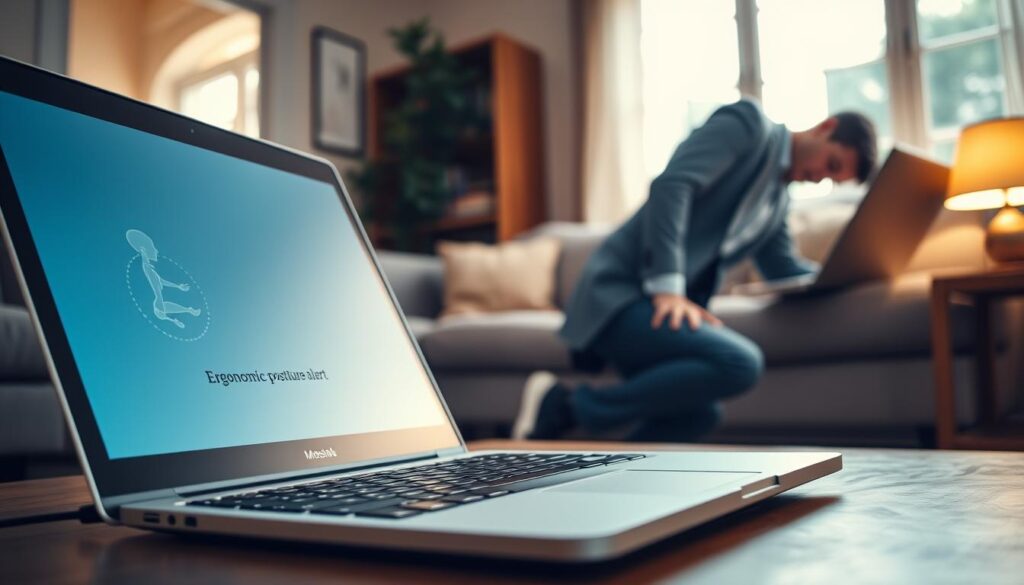
When the top of your screen sits below eye level, your body starts a chain of compensations. You tilt your head down and the shoulders round forward. Over days and weeks, that position becomes automatic and shapes your posture.
How a lowered display drives a posture chain
A low screen forces you to look down. That repeated neck angle pulls your head forward and rounds your shoulders.
As your upper back rounds, the mid-back loses its natural curve. Your lower back then takes extra load and the spine endures stress it wasn’t built for.
Red flags to watch for
- Neck and shoulder pain: stiffness or nagging ache after long sessions.
- Headaches and lower back discomfort: often show up after several hours of work.
- Wrist or arm issues: reaching forward or anchoring wrists raises risk of repetitive strain.
The 20-degree rule made simple
If your neck bends past about 20 degrees for sustained periods, your body compensates. You lean the trunk, reach with your arms, or tense your wrists. Those small angles add up and multiply strain over hours of use.
Why “sit up straight” won’t fix it: willpower can’t change the mechanics of a low screen and a fixed keyboard. The better move is to change the setup. In the next section, you’ll get a compact checklist you can use on any surface to reduce pain and protect your spine and overall health.
Laptop desk ergonomics: Your Portable Setup Checklist for Better Posture
When you set up in a new spot, one quick checklist keeps your posture steady and pain away. Follow the sequence below each time you move so your neck, shoulders, and wrists stay protected.
Set screen height
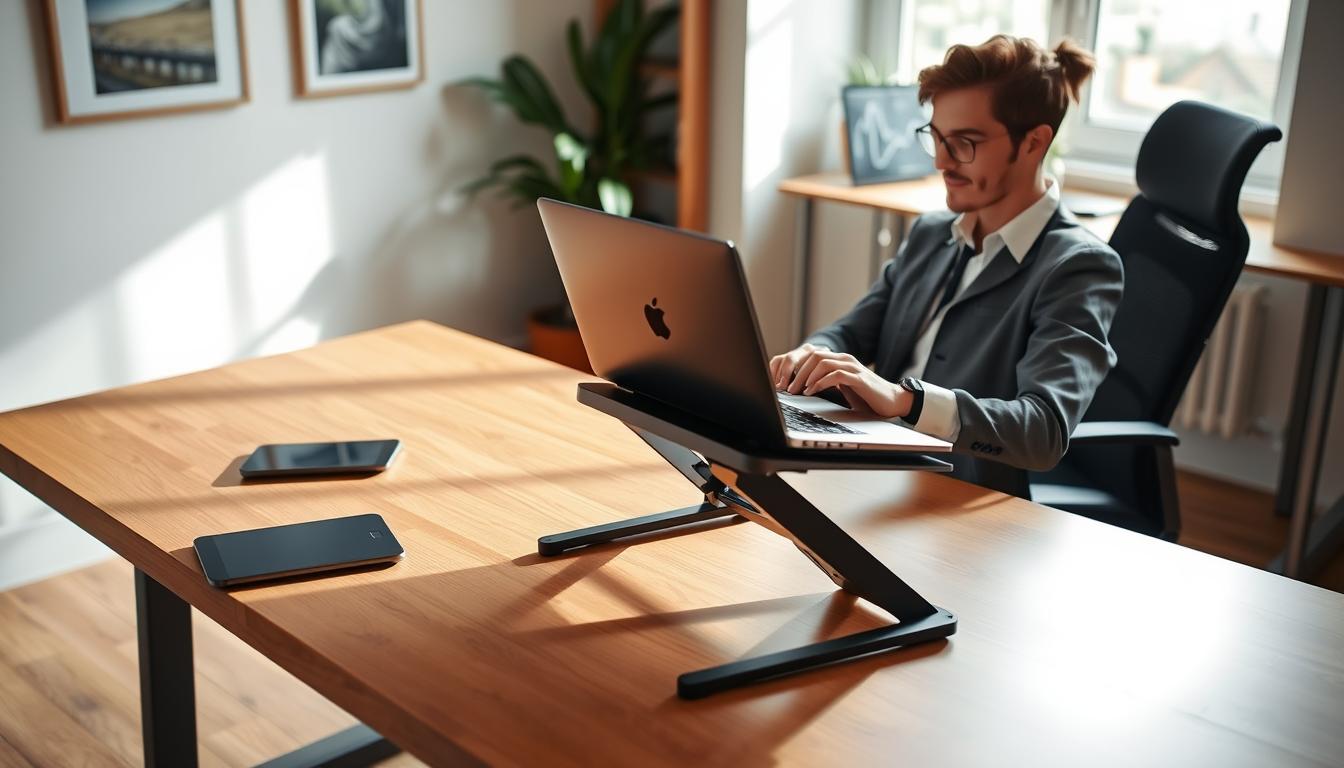
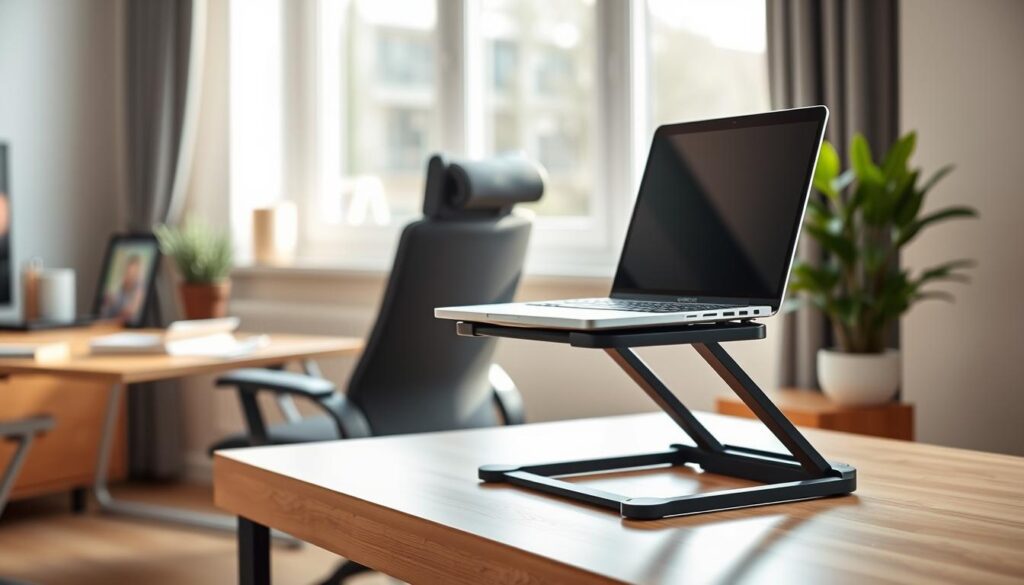
Raise the top of the screen to at or slightly below eye level. Most people need about 12–25 cm higher than the flat position. That change keeps your neck neutral and reduces forward head posture.
Check viewing distance
Use the arm’s-length test: extend your arm and touch the screen with your fingertips. Aim for roughly 50–75 cm to avoid eye strain and the urge to lean forward.
Separate input and posture
Once the screen is raised, use an external keyboard and mouse so elbows rest by your sides at about 90°–120°. Keep wrists straight and the mouse close to avoid reaching and shoulder load.
Fix chair, feet, and visual comfort
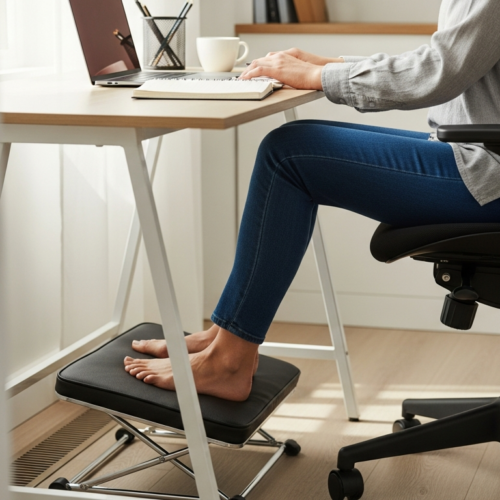
Sit back with lumbar support; if you raise the seat, add a footrest so feet stay flat. Tilt and dim the screen to reduce glare, and follow the 20-20-20 rule for eye breaks.
- If you change one thing: elevate the screen and separate the input for the biggest posture payoff.
How to Work Ergonomically from Different Surfaces Using a Portable Laptop Stand
A simple, repeatable routine protects your posture when your work surface keeps changing. Follow three quick checks each time: raise the screen, keep your arms close, and support your lower back.
Kitchen or dining table
Bring a portable stand and lift the screen so your neck stays neutral. Pair the riser with an external keyboard and mouse so you don’t reach forward all day.
If the seat is high, add a footrest so your feet stay flat and your back keeps its curve.
Couch or lounge chair
Use a firm pillow for lumbar support and avoid sliding into a slump. Elevate the computer enough to limit neck flexion, and take short breaks to reset posture every 30–40 minutes.
Hotel desk or coffee shop
Choose a packable stand that clicks open fast and stays stable on small surfaces. Set the stand first, then the keyboard and mouse, and test for wobble before long typing sessions.
Standing setup
Alternate sitting and standing every 30–60 minutes. Keep the top of the screen at eye level and avoid leaning on one hip or locking your knees.
- Quick self-check: shoulders down, neck long, elbows near your sides, wrists neutral, and screen readable without leaning forward.
- These small moves adapt the same workstation rules to four common surfaces so your posture stays protected all day.
Choosing a Portable Laptop Stand and Accessories That Actually Reduce Strain
Picking the right riser and a few add-ons makes your mobile setup protect your body instead of creating new problems. Look for three core features: enough height range to bring the top of the screen to eye level, strong stability so the unit won’t bounce, and portability that fits your daily carry.
Quick buyer’s checklist
- Height adjustability: can it reach eye level for your seated and standing positions?
- Rigid build and non-slip feet to prevent wobble while you type with an external keyboard and mouse.
- Fold size and weight that match your commute or travel routine so you actually use it.
When books or boxes are okay
Temporary risers work in a pinch. Use a stable stack, avoid blocking vents, and never leave a wobbling pile under the computer. If it slides or forces you to hunch, stop and change it.
Accessory add-ons that matter
Add a compact footrest when you raise your chair, a lumbar cue like a small pillow, and focused task lighting to cut glare and eye discomfort. These simple pieces lower neck, shoulder, and wrist strain, reduce repetitive strain risk, and help you stay focused with less pain.
Conclusion
Changing how you arrange your tools matters more than forcing better posture. Start by separating the screen from the keyboard so your display can sit higher and your arms stay relaxed.
Keep neck flexion under about 20 degrees, use an arm’s-length viewing distance, and keep wrists neutral with a nearby keyboard and mouse. These are simple rules you can use anywhere.
Different surfaces don’t cause harm — unadjusted setups do. A portable stand and a couple of small accessories give consistent results across tables, sofas, and travel spaces.
Treat discomfort as data: if you feel tension or headaches, tweak height, distance, or input placement. Pick one upgrade you’ll actually use daily, like an adjustable stand plus an external keyboard/mouse, and commit to quick posture resets.