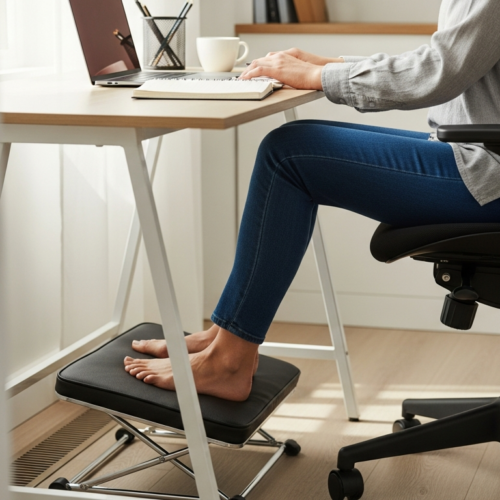


Shared work surfaces need to fit people, not the other way around. In many homes, fixed desks sit near 73–76 cm while chairs match 43–50 cm. That one-size setup forces you to “cheat” comfort with cushions or risers, and those fixes often fail across different bodies.
By “adjustable” we mean you can change desk level and related gear so your typing and screen viewing position match your body. This adjustability cuts strain and reduces the risk of neck and back pain during long sessions.
In a small, shared room the wrong size relationship quickly turns into real discomfort. If one person raises the chair, the other loses proper monitor angle. That is why this guide focuses on clear ergonomic position targets for desk, chair, and monitor.
You will learn simple steps: set the desk, align your chair, then place the monitor so your neck stays neutral. Expect practical tips for tight space and fast switching, with attention to minimal clutter and gear you will actually use every day.
Why height adjustability matters in a multi-user small home office
When a single desk level governs every user, small differences in arm and leg length turn into daily strain. In a tight room, that mismatch shows up fast: raised shoulders, a dropped head, or cramped knees.
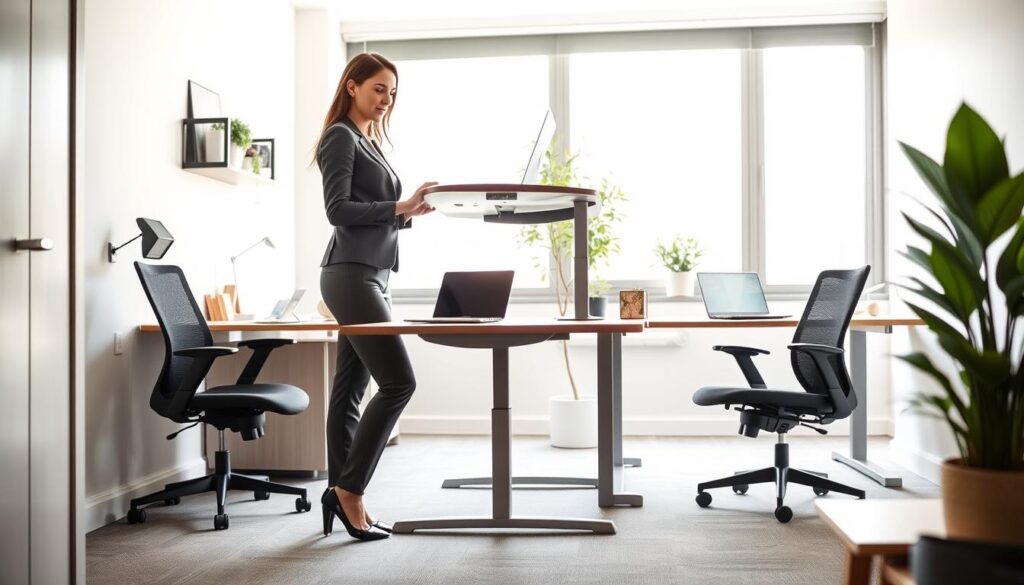
How shared desks create pain points when size and setup don’t match your body
One person may shrug to reach the keyboard while another tilts their head to read the screen. Both reactions add up to chronic neck and shoulder pain over weeks and months.
Productivity and health benefits that make flexibility worth the space
If your monitor sits too low or too high your head drifts forward and focus drops. When your hands are awkward, typing slows and breaks increase. Standing for part of the day can add movement — a Mayo Clinic note finds roughly up to 340 extra calories burned by standing two hours versus sitting.
When a “one height” setup fails: real sitting vs. standing use
Try this simple routine: sit for deep writing and calls, then stand for quick meetings or when energy dips. Each mode needs a different desk level to keep a neutral position and reduce long-term back pain.
- Common symptoms: neck, shoulder, lower-back pain
- Body mismatch: arm reach and leg clearance matter
- Work flow: switching modes improves focus and comfort
- Small rooms: a compact solution can still offer big gains
Next: learn the simple steps to set your desk, chair, and monitor so the benefits of change actually reach your body and daily experience.
Adjustable height basics for dialing in ergonomic desk, chair, and monitor position
Start by setting the desk so your forearms form an “L” at or just below elbow level. This keeps your shoulders relaxed and helps you type with wrists straight.
Keep your elbows at about a 90–100° angle and your forearms parallel to the floor. That arm alignment reduces shoulder tension and lowers the chance of wrist strain.
Monitor and screen checklist
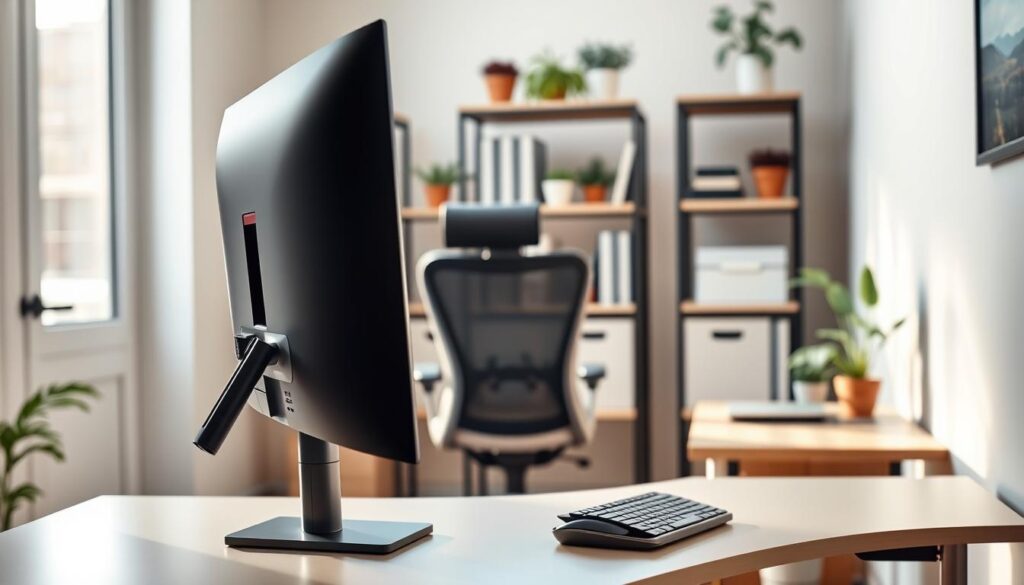
Place the top third of the monitor at eye level and tilt it back roughly 10–20°. Sit about 18–28 inches from the screen so your head stays neutral and you don’t lean forward.
Tools and peripherals
An adjustable monitor arm makes moving the screen fast when different users take turns. It protects your head and neck by keeping the monitor in the right spot.
- Keep keyboard and mouse on the same plane with wrists straight.
- Set your seat so feet are flat and a small gap remains behind your knees.
- Use lumbar support to maintain a natural lower-back curve.
Every hour check your head and shoulder position, soften any tension, and shift posture between sitting and standing. Small habits keep good settings working for you.
Choosing the right adjustable option for tight spaces, multiple users, and real-world load
Start by matching the lifting option to how often users swap and how much gear you place on the top. In a small room, the right pick keeps things stable and quick to change.
Pick the best type for your setup
Sit-to-stand adapters let you keep an existing desk and cost less, but they reduce usable surface and can add wobble with heavy monitors. A full desk gives cleaner ergonomics and a wider range, yet takes more room.
Electric vs. hand-crank
Electric lifts are faster, quieter, and often include anti-collision and programmable memory for one-touch switching. A hand crank can be reliable and cheaper, but switching many times per day becomes slow.
Load, range, and stability
Pay attention to listed lbs and weight capacity. Specs like a 12″ travel or a 30″-42″ worksurface range and a 1000 lbs rating can guide you, but manufacturers sometimes exclude the top in that capacity. Verify what is counted.
- Memory: two or more presets speed handoffs.
- Design: 4-post frames reduce wobble for heavy monitors.
- Reviews: focus on real experience with wobble, lift function, and daily use.
Conclusion
In shared home offices, quick and repeatable setup changes keep posture steady and discomfort low. When more than one person uses the same desk, the simplest path to comfort is an adjustable workspace that restores ergonomic targets fast.
Do this next: set the desk so your forearms form an L, set your chair for feet-flat support, then bring the screen to eye level and save or mark those settings.
Standardize handoffs: use presets, label ideal positions, and keep surface size clutter-free so switching is smooth. When you shop, give attention to range, stability, and real-user feedback rather than extra bells.
Quick checklist: does it fit your room size, fit both users, switch quickly, and stay stable at the heights you need?